
How it works
Two ways to use InsPrint — pick whichever suits you:
- Quick print: No account — upload, pay, collect at the kiosk
- With an account: Print history, member deals, the document library, and community events
Step 1a: Hit “Express Print”
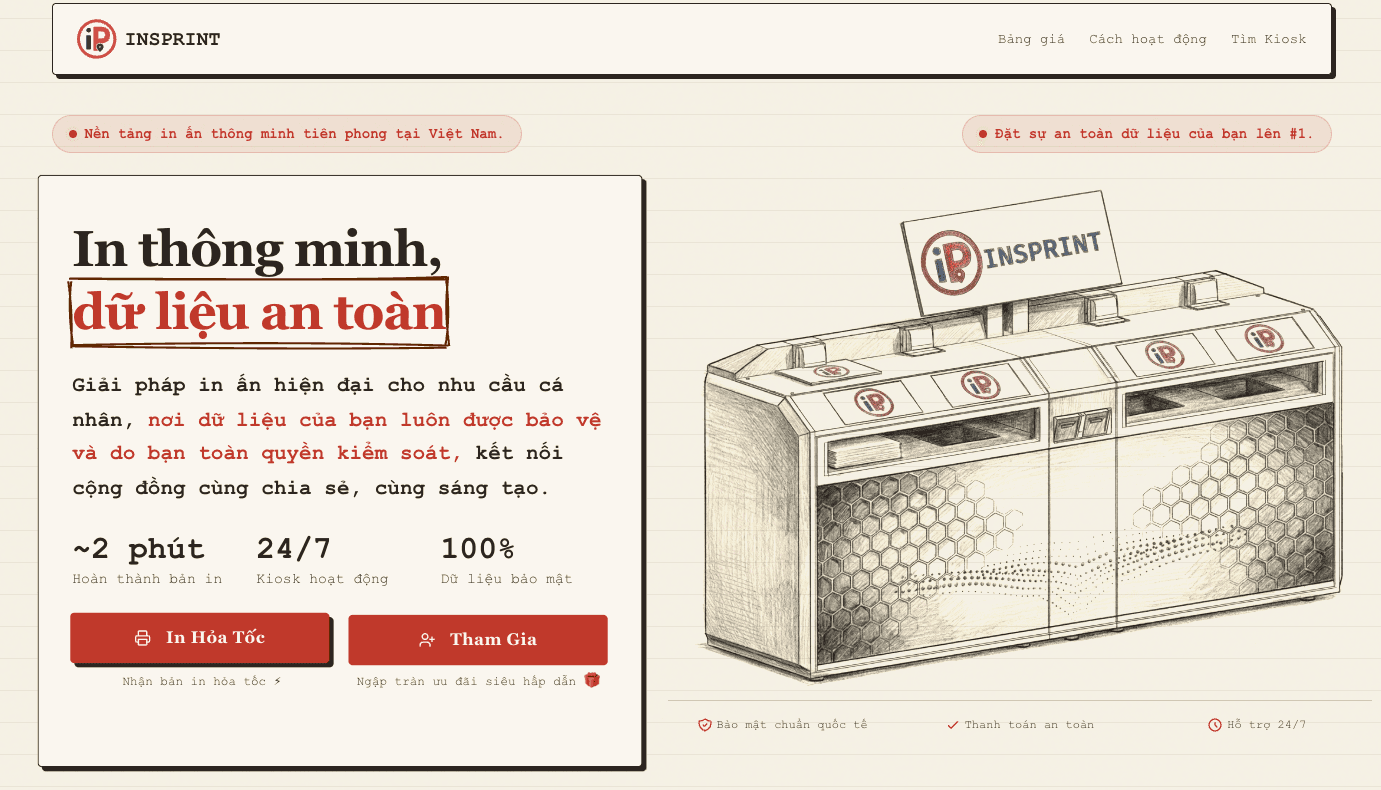
On the home page insprint.vn, tap “Express print” to get going. Nothing to install, no account needed — it all runs in your browser, on any device.
Step 1b: Upload your document
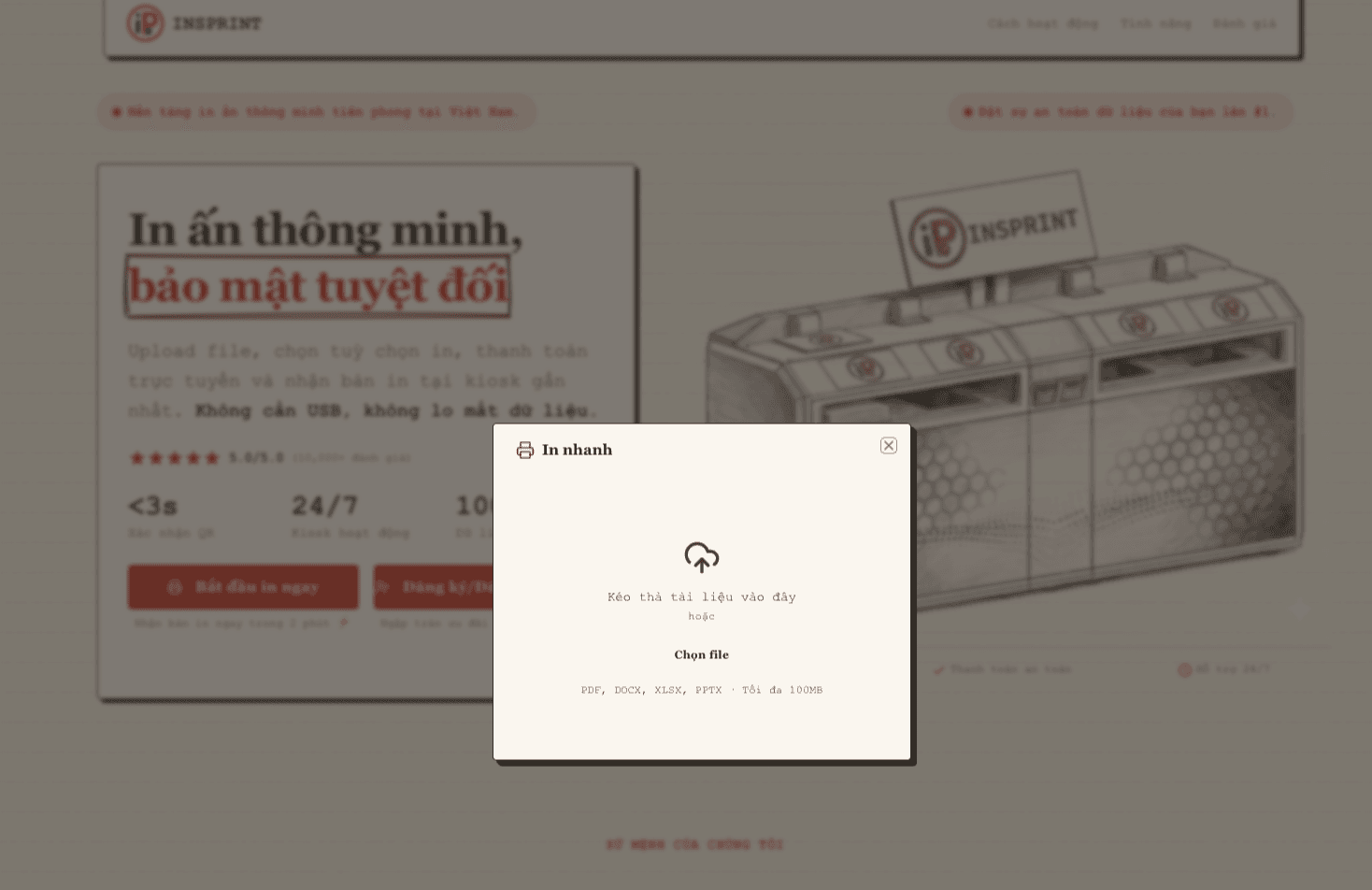
Drag and drop, or pick a file from your machine. InsPrint handles the usual formats: PDF, Word (.docx), Excel (.xlsx), PowerPoint (.pptx), JPG/PNG images. Up to 50MB per file.
Once it is up, we automatically read your file, build a preview, and convert it into something the printer understands — this usually takes 5–30 seconds depending on file size. You can check the preview right there before moving on.
Step 2: Set your options & get a quote
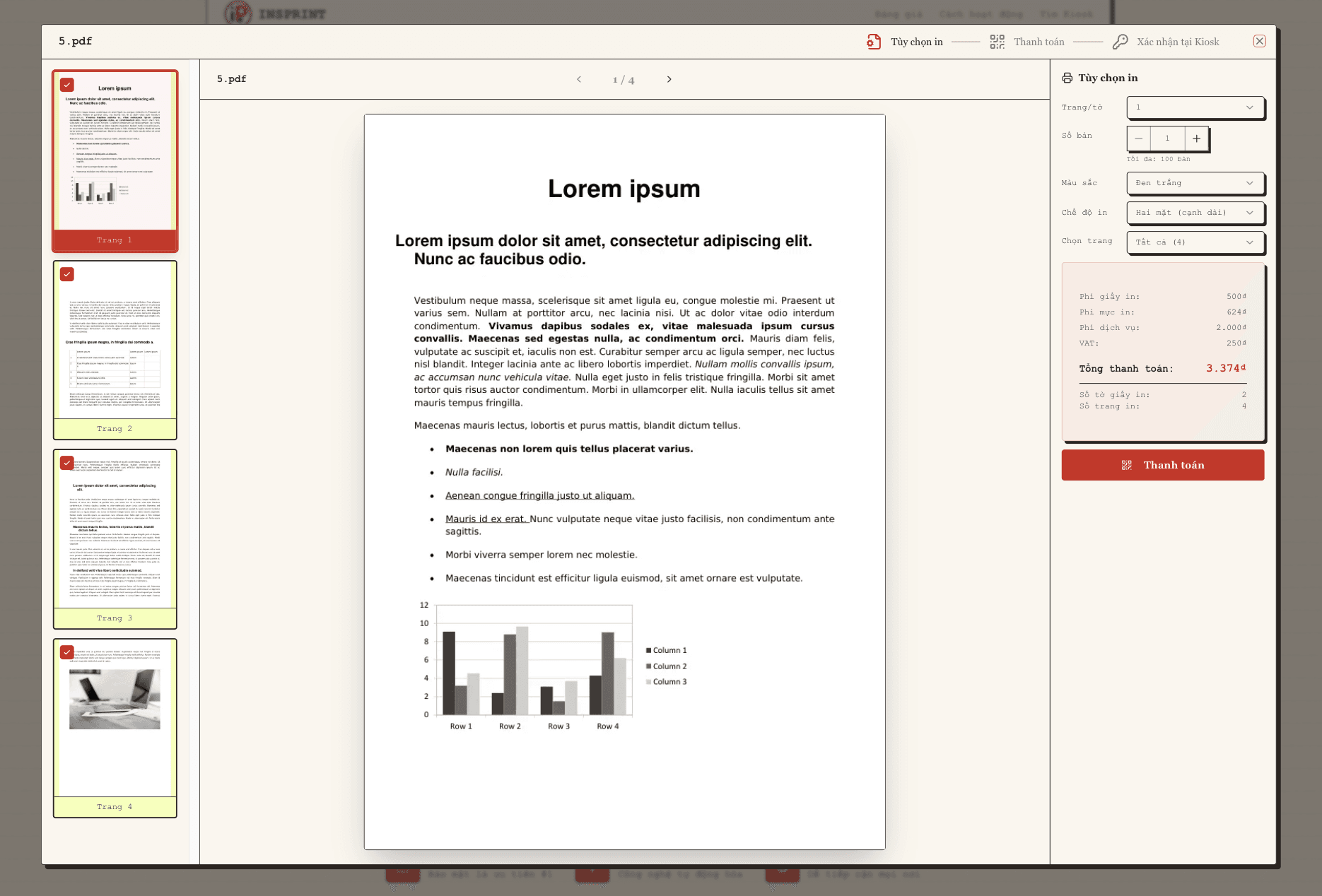
Set it up however you need:
- Copies: 1–100
- Colour: Full colour or black and white
- Sides: Single or double-sided
- Pages per sheet: Shrink several pages onto one side — 1, 2, 4 or 6
Choosing pages
Pick pages however you like — mix any of these in the same box:
- A list:
1,2,3,4— just those four pages - A range:
1-4— everything from 1 to 4 - Mix them:
1,3,4-10,14— pages 1, 3, 4 through 10, and 14 - Or just tick them: Use the checkboxes beside the preview — the page box updates itself
Instant quote
The price recalculates as you change things, and every line is itemised: paper, ink, service fee, VAT. The quote locks in the sheet count and page count so you can check the maths. No hidden fees. Hit Continue to payment when you are happy.
Step 3: Pay with VietQR
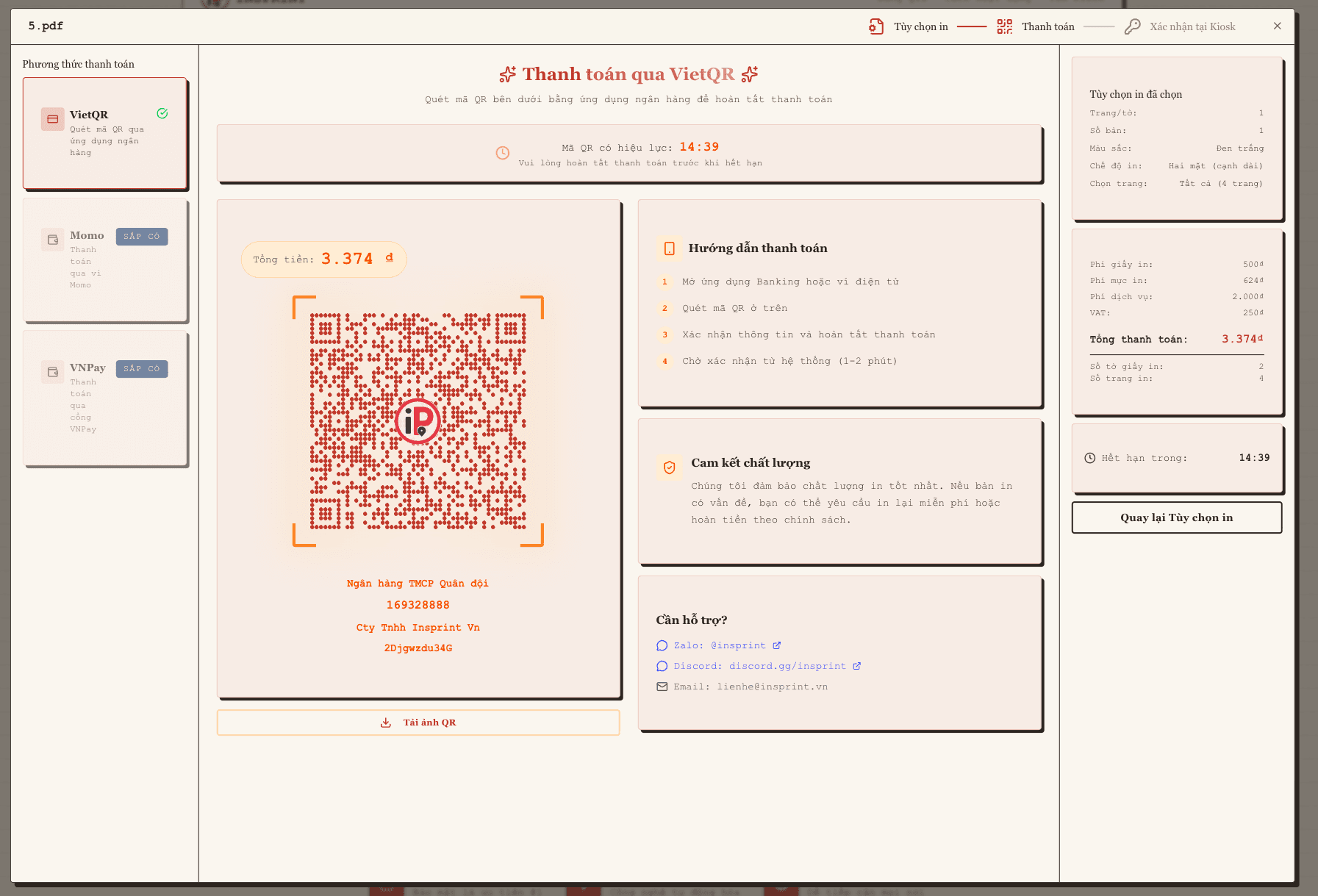
We generate a QR code just for your order. Open your banking app (every Vietnamese bank works), scan it, confirm the transfer. Your job is confirmed the moment the payment lands — you will see it on screen.
Note: The QR code is good for 15 minutes. After that, start a new order. We never store your card details.
⚠ Important: The QR code in the picture above is for illustration only and will not take a payment. Only ever scan the QR code generated inside your own order on insprint.vn. InsPrint is not liable for, and will not refund, anything you send by scanning the sample code.
Step 4: Confirm at the kiosk & grab your prints
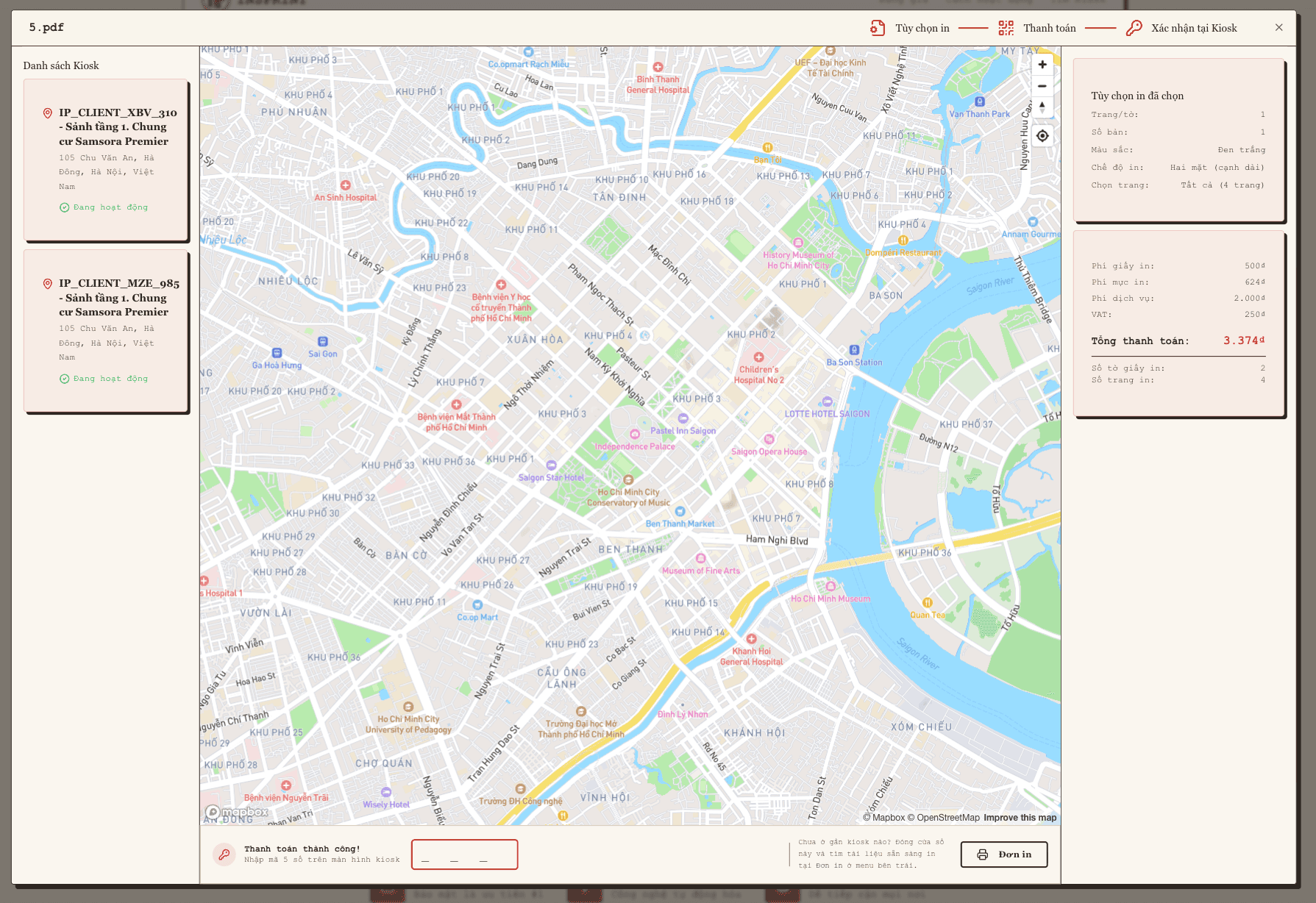
Walk up to any InsPrint kiosk and do this:
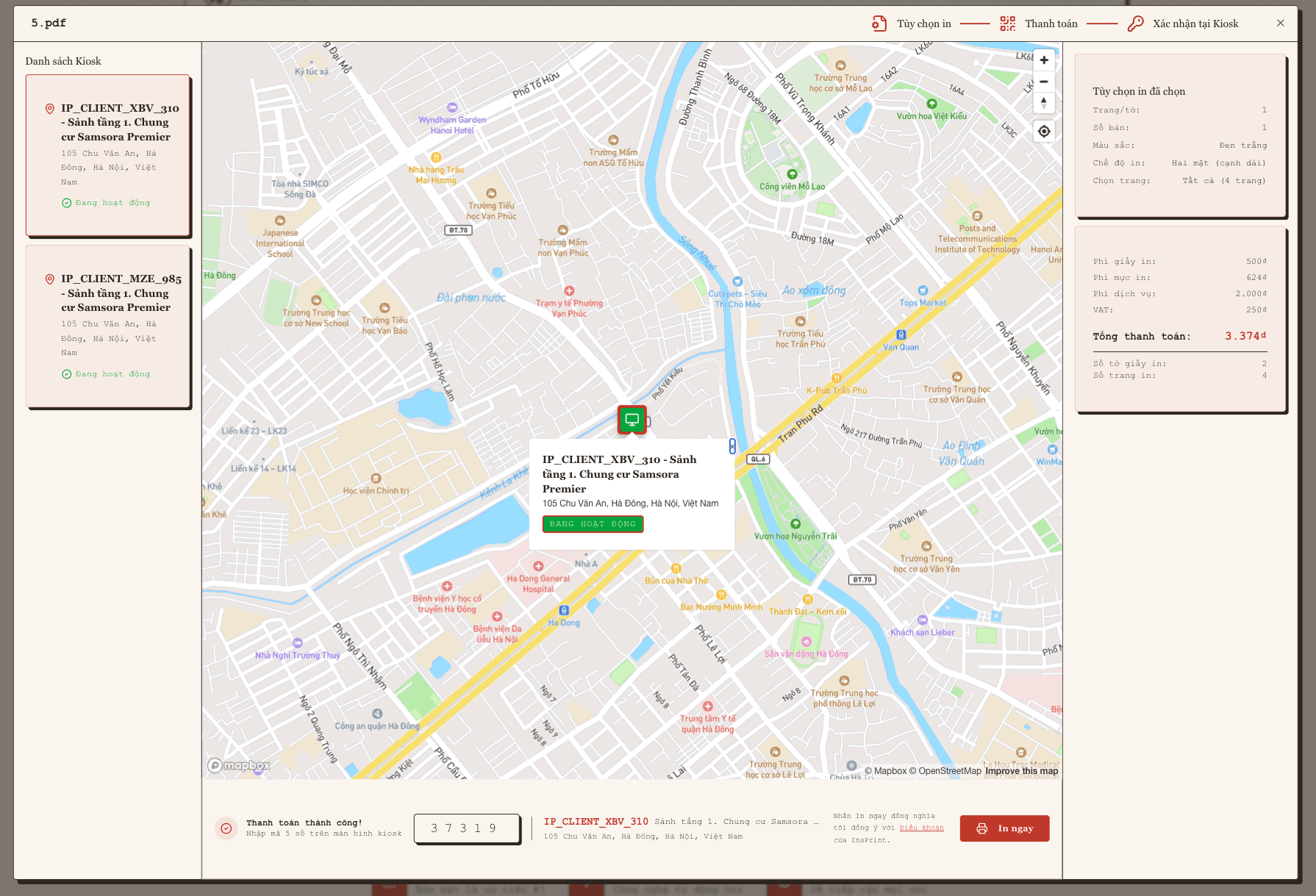
- Enter the kiosk code: The Printing Wizard jumps to the code step the moment payment clears. At the kiosk, look at the screen — it shows a 5-digit code that rotates in real time, so we know you are actually standing there. Type all five into the Printing Wizard — it verifies instantly and the map jumps to that kiosk.
- Hit "Print now": On the Confirm print screen, tap Print now and the kiosk starts printing.
Worth knowing: When you press Print now, you confirm you have read, understood and fully agree to to the Terms & conditions and Service policy of InsPrint.
- Follow along:
- On the web: your job code and status appear the moment you hit Print now, updating live.
Printing
Done
- On the kiosk LED panel:
Amber · pulsing = printingGreen · steady = done - On the web: your job code and status appear the moment you hit Print now, updating live.
- Collect your prints: From the output tray of the printer matching your LED panel.
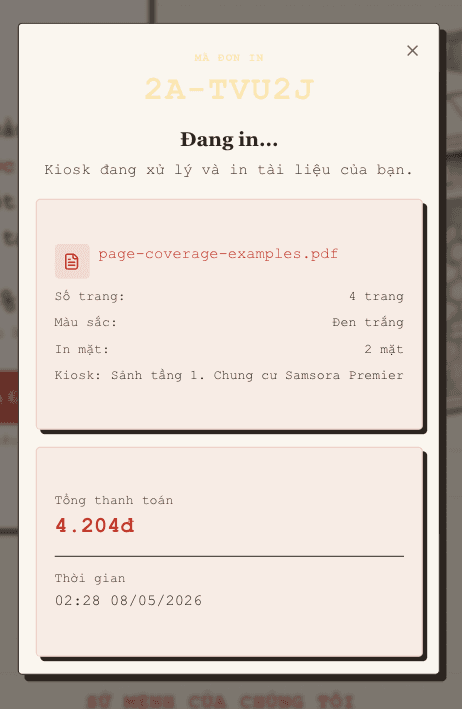
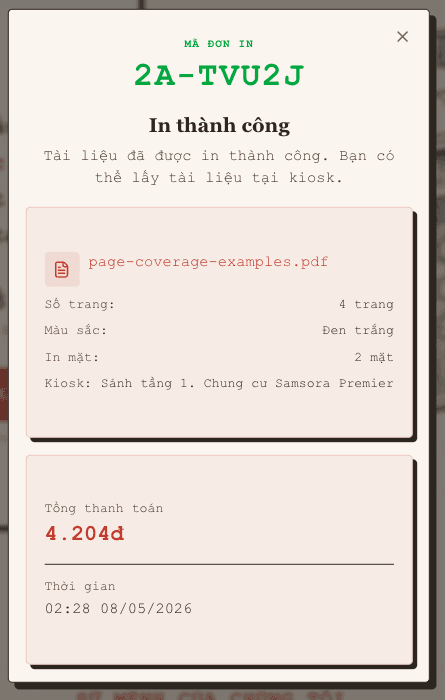
Important: Once the LED turns green you have 5 minutes to collect. After that the slot frees up for the next person, and we cannot be responsible for prints left behind.
Your job stays valid for 7 days from the day you pay. Miss the window and it cancels itself with a full refund. See Cancellation policy.
Need a hand? Email us at [email protected] or call 0961.187.218 during business hours (8:00–17:30, Mon–Fri).